




Desk phones work well when everyone is in the office. They become a problem when employees work remotely, move between locations, or need to handle calls while working from a laptop.
A PC softphone turns a computer into a business phone, allowing users to make and receive calls through software instead of a physical handset. For companies trying to support hybrid work, reduce phone hardware, or keep business calls tied to company numbers, it can be a practical alternative.
But it is not the right fit for every team. Call quality, network stability, user roles, and phone system setup all affect whether a PC softphone works well in practice.
What Is a PC Softphone?
A PC softphone is software that lets users make and receive phone calls from a computer instead of a physical desk phone. It uses an internet connection and is typically connected to a VoIP service or cloud PBX.
For business use, a PC softphone can act as an employee’s main phone interface. Depending on the system, users may be able to call from a company number, receive inbound calls, dial internal extensions, transfer calls, place callers on hold, access voicemail, view call history, or record conversations.
The key distinction is that the softphone is not the entire phone system. It is the app or interface the user operates. The cloud PBX or VoIP platform behind it manages the phone numbers, users, routing rules, permissions, and call features.
To better understand PC softphones, it also helps to understand why businesses are replacing traditional PBX systems with cloud PBX.

Who Uses PC Softphones?
PC softphones are commonly used by teams that already work from computers and need business calling built into that workflow.
- Remote and hybrid employees use them to handle company calls outside the office without relying on personal mobile numbers.
- Sales teams use them to make outbound calls while working in a CRM, reviewing customer records, or taking notes.
- Customer support teams use them to answer calls while viewing tickets, order details, or customer history.
- Administrative staff and receptionists may use them to answer main numbers, transfer calls, and manage basic call routing.
- Small businesses and startups use them to reduce desk-phone hardware and add or remove users more easily.
- Multi-location companies use them to keep employees connected through one phone system across different offices.
A PC softphone is less suitable for employees who are rarely at a computer, teams with unstable internet, or high-volume call centers that need advanced queue management and supervisor tools.
Before replacing personal mobile numbers with a PC softphone, it is also worth checking whether your existing business phone number can be transferred to a cloud PBX.
How Does a PC Softphone Work?
A PC softphone works by connecting the user’s computer to a VoIP service or cloud PBX. The computer acts as the calling device, while the phone system handles the routing behind the scenes.
A simple call flow looks like this:
PC softphone → internet connection → VoIP service or cloud PBX → customer, colleague, or phone network
When an employee makes a call, the softphone sends the request through the internet to the phone system. The system then routes the call to the correct destination, such as a customer’s mobile phone, landline, or another employee’s extension.
For incoming calls, the process works in reverse. A customer calls the company number, and the phone system decides where the call should ring. Depending on the setup, it may ring one employee’s softphone, several users at once, a department group, an auto-attendant, or voicemail.
For the user, the process is simple: log in, choose the correct audio device, and make or receive calls from the softphone interface. The main things that affect call quality are the internet connection, headset, computer performance, and call-routing setup.
To better understand the technology behind PC softphones, it also helps to understand the difference between a traditional PBX and a cloud PBX.
PC Softphone vs Other Business Phone Options
Before choosing a PC softphone, it helps to understand what it replaces and, more importantly, what it does not replace. A PC softphone can replace the physical phone on an employee’s desk, but it usually still needs a VoIP service or cloud PBX behind it to manage company numbers, extensions, and call routing.
| Option | What it is | Best suited for |
|---|---|---|
| PC softphone | Calling software used on a computer | Employees who work mainly from a laptop or desktop |
| Smartphone softphone app | Calling software used on a mobile device | Employees who are often away from their computer |
| IP phone | A physical desk phone that uses internet-based calling | Reception desks, shared desks, or users who prefer dedicated hardware |
| Cloud PBX | A cloud-based business phone system | Companies that need central control over numbers, users, routing, and call features |
| Traditional desk phone system | Office-based phone setup using physical handsets and phone infrastructure | Fixed offices where most calls happen at assigned desks |
A PC softphone is usually the best fit when employees already work from computers and need to handle calls alongside email, CRM tools, tickets, or internal systems.
Keep in mind that a PC softphone is not a complete phone system by itself. It is one way employees access the company phone system.
Many companies use a mixed setup: PC softphones for employees who work mainly from computers, smartphone apps for mobile workers, and IP phones or desk phones for reception desks, shared counters, or fixed locations where an always-available handset is still useful.

If many of your employees spend most of their time away from a desk, it’s worth comparing how to use your business phone number on an Android smartphone alongside a PC softphone before choosing the right device for your team.
What Can You Do With a PC Softphone?
A PC softphone can handle many of the daily calling tasks usually done on a business desk phone. The exact features depend on the VoIP service or cloud PBX, but common functions include:
Make and receive business calls
Employees can call customers, suppliers, partners, and colleagues from their computer. In many business setups, they can use a company phone number rather than a personal mobile number.
Use internal extensions
Teams can call each other through extension numbers, even when employees work from different locations. This is useful for remote teams, branch offices, and companies with hybrid work arrangements.
Transfer and hold calls
Receptionists, support staff, and sales teams can place callers on hold or transfer them to the right person or department. This is essential if the PC softphone is replacing desk phones for customer-facing roles.
View call history and voicemail
Many systems allow users to check missed calls, call logs, voicemail, and contact records from the same interface. This helps employees follow up without relying on separate notes or manual tracking.
Record calls or connect with business tools
Some systems support call recording, reporting, CRM integration, call queues, group ringing, or presence status. These features are especially useful for sales and support teams, but they are not included in every softphone setup.
The important point is that companies should not choose a PC softphone just because it can make calls. They should check whether it supports the workflows their team actually needs, such as transfers, shared numbers, voicemail, recording, or CRM use.
If employees are handling customer calls across multiple locations, it is also worth considering how an IVR system can route incoming calls more efficiently before deciding how PC softphones should fit into your phone setup.
Benefits of Using a PC Softphone
A PC softphone is most useful when a company wants to make business calling less dependent on fixed office desks and physical phone hardware. The main benefits are flexibility, lower hardware requirements, easier scaling, and better control over business calls.
Supports remote and hybrid work
Employees can handle business calls from home, another office, or a shared workspace without needing a desk phone in each location. This helps companies keep phone coverage consistent even when staff are not all working from the same office.
Reduces desk-phone hardware
A PC softphone can reduce the need for physical handsets, phone wiring, and desk-based phone setups. This is useful for companies moving to hot-desking, smaller offices, or distributed teams.
This does not mean hardware disappears entirely. Many users still need a headset, and some roles may still need desk phones. But companies may not need a handset for every employee.
Makes Office Layout Changes Easier
PC softphones can make office moves, hot-desking, and layout changes easier because employees are less dependent on fixed phone wiring or assigned desk handsets. This is useful for companies reducing office space, reorganizing teams, or moving toward shared workstations.

If you want to reduce your dependence on desk phones and on-premises phone equipment, it may also help to understand how businesses migrate from a traditional PBX to a cloud phone system.
Makes it easier to add or remove users
With a softphone-based setup, adding a new employee is often a matter of creating an account, assigning permissions, and configuring the correct number or extension. That is usually simpler than installing a new desk phone and changing office wiring.
This is especially useful for growing teams, temporary staff, seasonal hiring, or companies with frequent role changes.
Keeps business calls under company control
When employees use personal mobile phones for customer calls, the company loses visibility and control. PC softphones help keep business calls inside the company phone system, where numbers, routing, call history, permissions, and recordings can be managed centrally.
This is better for privacy, consistency, and handover when employees change roles or leave the company.
Fits computer-based workflows
For teams that already work from laptops or desktops, a PC softphone can reduce device switching. Sales, support, recruiting, and admin teams can handle calls while viewing customer records, tickets, documents, or internal systems.
The benefit is not just “calling from a computer.” The benefit is keeping calls connected to the work being done on that computer.
Make Every Incoming Business Call Easier to Manage
Drawbacks of PC Softphones
PC softphones are useful, but they are not automatically better than desk phones in every situation.
The first risk is call quality. Because calls run over the internet, weak Wi-Fi, network congestion, packet loss, or unstable connections can cause delays, broken audio, echo, or dropped calls. A PC softphone can really only perform as well as the network environment allows.
The second is audio equipment. Built-in laptop microphones are often not good enough for business calls, especially in noisy spaces. They may pick up keyboard noise, room echo, or background conversations. For customer-facing roles, a proper headset is usually necessary.
The third is security. A PC softphone gives users access to company calling, so businesses need proper account management, permissions, password policies, and offboarding processes. If a laptop is shared, lost, or poorly secured, business phone access can become a risk.
Emergency calling should also be checked before rollout. Depending on the VoIP or cloud PBX service, calls to emergency numbers such as police, fire, or ambulance services may not be supported, or may work differently from traditional landlines. Companies should confirm this with the provider and prepare a clear alternative procedure for emergencies.
Finally, there is device availability. A desk phone is always sitting on the desk and is usually designed for one job: calls. A computer is not. It may be asleep, frozen, restarting, disconnected from Wi-Fi, muted, or using the wrong audio device. If the PC softphone is closed or the user is logged out, calls may not ring as expected.
A PC softphone may be excellent for office workers and remote staff, but not ideal for employees who are rarely at a computer. Field workers may prefer smartphone apps. Receptionists may need more advanced call-handling controls. High-volume call centers may need dedicated contact center software with queue management, monitoring, reporting, and quality assurance tools.
The mistake is treating PC softphones as a universal replacement. They are not. They are a strong option when the user’s work style, network environment, and call-handling needs fit the tool.

Which PC Softphone is Right For Your Business?
Choosing a PC softphone service should start with workflow, not feature lists. Before comparing providers, define how your team actually handles calls.
A small business may only need inbound and outbound calling, voicemail, and simple forwarding.
A sales team may need call logs, CRM integration, and outgoing caller ID control.
A support team may need group ringing, call recording, queues, reporting, and escalation rules.
A receptionist may need fast transfers and visibility into who is available.
Once the workflow is clear, compare providers using five practical criteria:
- Compatibility: Does it work with your team’s computers, browsers, operating systems, and mobile devices if needed?
- Call features: Does it support the specific functions your team needs, such as transfers, voicemail, recording, forwarding, shared numbers, or call queues?
- Admin control: Can administrators manage users, numbers, permissions, routing rules, and call access without relying on support for every change?
- Reliability and support: Is help available when call quality, setup, or routing problems affect business operations?
- Pricing: What is the total cost, including users, phone numbers, call charges, setup, optional features, support, and storage?
Security should also be checked before choosing a provider. At minimum, the service should support proper user management, access control, and clear offboarding when employees leave.
Call Recording Access, Storage, and Notice
If the service includes call recording, check how recordings are managed. Companies should know who can access recordings, how long they are stored, whether they can be downloaded or deleted, and whether customers or employees need to be notified before calls are recorded. Call recording is useful for sales, support, and training, but it should not be treated as a casual feature.
Phone Number Type: Area Numbers vs 050 Numbers
It is also important to check which phone numbers the service supports. Some services allow businesses to use fixed-line-style area numbers such as 03 or 06, while others may use 050 numbers. This can affect customer trust, regional presence, number portability, and how the service handles certain calls. If keeping an existing company number is important, confirm this before choosing a provider.
If you are considering a geographic number such as a Tokyo 03 number, it also helps to understand what an 0ABJ number is and how it differs from other Japanese phone numbers.
Checklist: What You Need to Set Up a PC Softphone
While a PC softphone setup does not require a traditional desk phone, it does still need the right foundation.
At minimum, a company typically needs:
- A computer or laptop
- A stable internet connection
- A compatible operating system or browser
- A softphone account
- A VoIP or cloud PBX service
- A microphone and speakers, preferably a headset
- Phone number and extension settings
- User permissions and call-routing rules
For business use, a headset should not be treated as optional. It is one of the most important parts of the user experience. A poor headset can make a good phone system feel unreliable. A good headset can reduce background noise, improve clarity, and make calls easier for both the employee and the customer.
Network quality should also be tested before rollout. A softphone may work well in the office but perform poorly over weak home Wi-Fi, shared workspace internet, or overloaded networks. For larger teams, testing should go beyond basic internet speed and include latency, packet loss, jitter, and whether the router can prioritize voice traffic. Companies should test the real environments where employees will take calls.
Call routing should be configured before employees start relying on the softphone. For example, if someone does not answer, the call may need to be routed to another team member, a department group, a mobile app, voicemail, or an auto-attendant.
Finally, your team will need basic training. Users should know how to answer, hold, transfer, mute, change audio devices, check voicemail, and confirm whether they are logged in. Many softphone failures are not technical failures. They are basic user errors that can be avoided with proper onboarding.

If you are considering a geographic number such as a Tokyo 03 number, understanding why virtual offices cannot usually provide 03 numbers will make it easier to compare the available setup options.
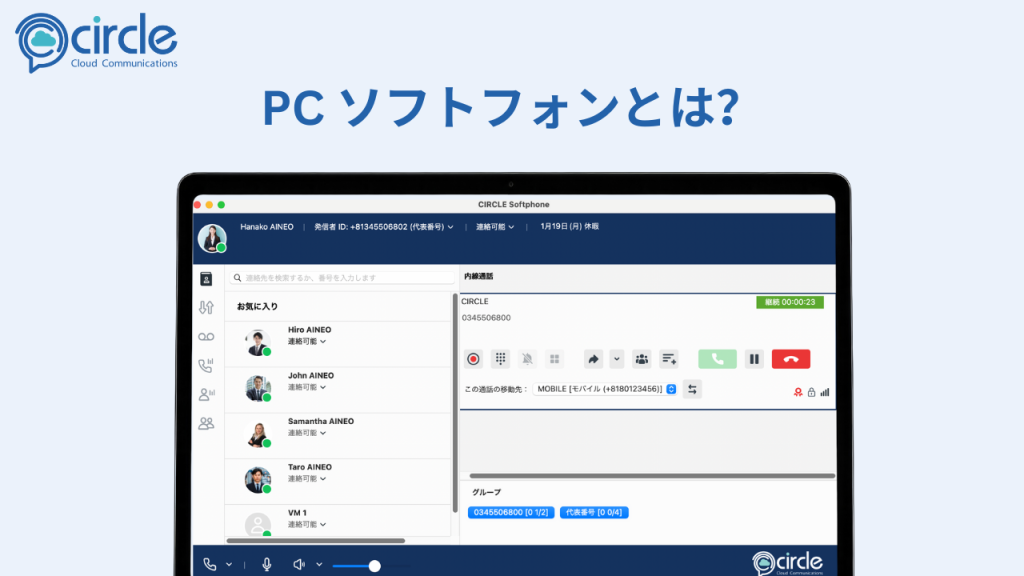
CIRCLE Softphone: Use Company Phone Numbers From Your PC
With CIRCLE Softphone, you can make and receive business calls from your computer using company phone numbers such as 03, 06, and 050. You do not need to install traditional PBX equipment or prepare a desk phone for every user.
Because CIRCLE is a cloud PBX service, you can also use business call-handling features such as internal calls, call transfers, group incoming calls, voicemail, call recording, IVR, ACD, call reports, and CRM/API integration. Available features may vary depending on the plan and options selected.
This makes CIRCLE a practical choice if you want to support remote work, reduce desk-phone hardware, manage calls across multiple locations, or build a more flexible customer support environment.
You can also review pricing in advance and try the service with a 10-day free trial before a full rollout.
Try a PC Softphone Free for 10 Days
FAQs About PC Softphones
What is the difference between a PC softphone and a softphone?
A softphone is any software-based phone. A PC softphone is a softphone used specifically on a computer. Softphones can also run on smartphones or tablets.
Can a PC softphone use a company phone number?
Yes, if the VoIP service or cloud PBX supports it. Some services allow users to make and receive calls with company phone numbers, including fixed-line-style numbers such as 03 or 06. Always confirm which number types are available before choosing a provider.
Can a PC softphone be used for remote work?
Yes. A PC softphone is useful for remote work because employees can make and receive business calls from a laptop or desktop computer. The quality of the experience depends on the internet connection, audio equipment, account setup, and routing rules.
Does a PC softphone work when the computer is off?
Usually no. If the computer is off, asleep, disconnected, or the softphone is closed, calls may not ring on that device. Businesses should set backup routing to another user, mobile app, voicemail, or call group.
Is call quality worse than a desk phone?
Not necessarily. A PC softphone can provide clear call quality when the internet connection, headset, and phone system are good. Poor Wi-Fi, low-quality microphones, or network congestion can cause problems.
What equipment is needed to use a PC softphone?
At minimum, users need a computer, internet connection, softphone account, compatible phone system, and microphone or headset. For business calls, a reliable headset is strongly recommended.
Can PC softphones make emergency calls?
It depends on the service. Some VoIP or cloud PBX services may not support emergency calls, or emergency calling may work differently from traditional landlines. Companies should confirm this with the provider and prepare an alternative emergency procedure if needed.
Is a PC softphone suitable for call centers?
It can be, but high-volume call centers may need more than a basic PC softphone. They often require call queues, supervisor monitoring, reporting, recording, CRM integration, and quality management tools.
What are the disadvantages of PC softphones?
The main disadvantages are internet dependency, headset requirements, security management, and the need for proper setup. PC softphones may also be a poor fit for employees who rarely work from a computer.
Should Your Company Use a PC Softphone?
A PC softphone is a practical choice if your employees already work from computers and need a flexible way to make and receive business calls. It is especially useful for remote teams, hybrid offices, sales teams, support staff, and companies that want to reduce dependence on desk phones.
It is not the right fit for every situation. Call quality, network stability, headset setup, security, and call-routing rules all need to be planned before rollout. Some teams may still need mobile apps, desk phones, or more advanced contact center tools.
The best approach is to treat a PC softphone as part of your business phone system, not just another app on a laptop. If you want employees to use company phone numbers from their computers, CIRCLE Softphone gives you a way to test that setup with cloud PBX features and a 10-day free trial.


